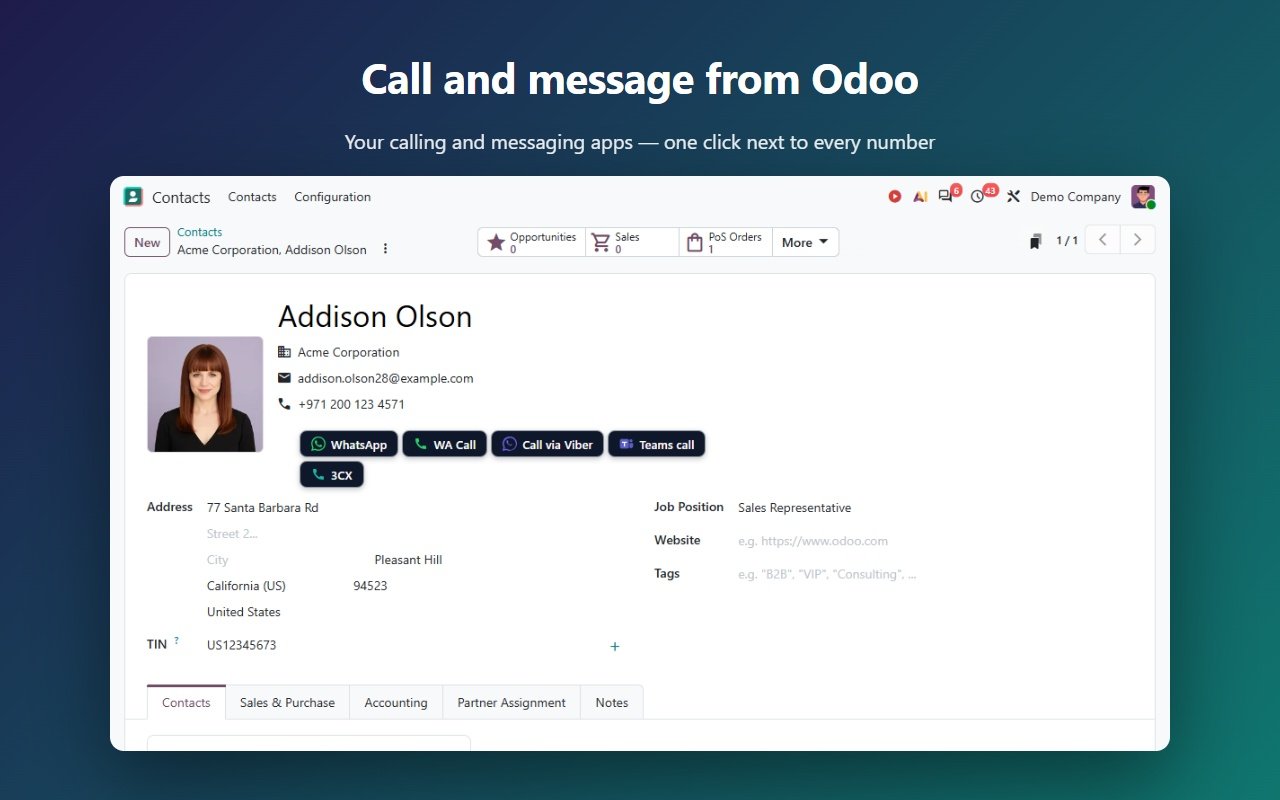
CallerPlugins for Odoo is a Chrome extension that adds call and message buttons next to phone numbers on contacts and CRM leads, both in the form and in list views. It opens WhatsApp, Microsoft Teams, your softphone or another app you choose, without Odoo’s WhatsApp app or a Meta business account. It works on Odoo Online and Odoo.sh.
Add to Chrome — freeFree: 10 uses per tool per month, or 100 for your team with a confirmed company email · Pro from €4.99 per user per tool
Switch on the apps your team uses and put them in your order. Each one has its own page: WhatsApp, Microsoft Teams, Softphone, Zoom Phone, Viber, Google Voice, plus Telegram and Signal.
Odoo’s own WhatsApp app is part of Odoo Enterprise and connects through the WhatsApp Business Platform. That is the right choice for template campaigns and shared inboxes. CallerPlugins is lighter: it starts a chat or call from the apps your team already uses.
| Odoo itself | CallerPlugins | |
|---|---|---|
| Enterprise-only app; needs a Meta business account, a Meta developer app and the WhatsApp Business Platform | Your own WhatsApp or WhatsApp Business app; nothing to set up in Meta | |
| Personal or Business app accounts | Not compatible with Odoo’s WhatsApp app | Supported |
| Calling | Odoo’s VoIP app on Standard or Custom, with a provider that supports WebRTC (Odoo names OnSIP and Axivox as verified) | Teams, Zoom Phone, Google Voice or a softphone that opens tel:, callto: or sip: links, on any plan |
Sources, checked 23 October 2026: Odoo 20.0 documentation: WhatsApp · Odoo pricing: plans and External API · Odoo 18.0 documentation: VoIP (providers and requirements)
With Pro, each click becomes a completed “Call” activity on the contact or lead, which Odoo shows in the chatter as a done call. Odoo needs no app approval: you connect it with an API key, and the key is stored encrypted. This uses Odoo’s external API, which Odoo’s pricing page lists only on the Custom plan.
The extension doesn’t yet. Odoo Community runs on your own server, and CallerPlugins only runs on *.odoo.com (Odoo Online and Odoo.sh). On a self-hosted Odoo you can still call through Odoo’s own Call link next to a phone number, which opens whatever app your computer uses for tel: links. Self-hosted support is on the roadmap; leave your email on the homepage to hear when it’s ready.
Yes. Switch on the Softphone tool and pick the link type your app takes: tel: for most current apps, callto: for older ones, or sip: with your provider’s SIP domain. The number then opens in MicroSIP, Zoiper, the 3CX app or your provider’s softphone, from a form or a list view. Without the extension, Odoo’s own Call link next to a number in a form also works if your softphone is the default app for tel: links. Our step-by-step guide “Click to call from Odoo with your own softphone”, linked below, covers the Windows settings and how to log the call.
The current Odoo Online versions. We last tested on the public Odoo demo (Odoo 20) on 14 October 2026.
No. The buttons work on any Odoo Online or Odoo.sh plan. Pro logging is different: it connects through Odoo’s external API, and Odoo’s pricing page lists external API access only on the Custom plan (checked 23 October 2026). On One App Free or Standard, use the buttons without logging.
Not with Odoo’s WhatsApp app: its 20.0 documentation says personal WhatsApp and WhatsApp Business app accounts are not compatible (checked 23 October 2026). CallerPlugins opens the chat in the WhatsApp you already use on your computer, personal or Business app, so the message goes out from your own number. The flip side: replies stay in WhatsApp and are not copied into Odoo.
The buttons are free for 10 uses per tool per month, or 100 shared by your team once you confirm a company email. Above that, or to log each click in the chatter, Pro costs €4.99 per user per tool a month, or less with yearly billing. WhatsApp itself charges nothing for chats you start from your own app.
[full name] is the contact’s name; on a lead it is the Contact Name, or the Customer if that is empty. [name] is the first word of it, and [phone] is the number you clicked. [company] comes from the contact’s Company or the lead’s Company Name, and [email] from the email field. In a list view the values come from the columns shown, so a hidden column leaves its field blank.